
Applications and exams
Build a form (whitelist, police…), add a timed exam graded automatically, then handle requests in Moderation → Applications.
Updated on Oct 5, 2026, 1:36 p.m.
In short. Forms are built in Administration → Applications. Requests are handled in Moderation → Applications. Accepting an application can give a group, and therefore a Discord role. Applications do not depend on any license.
Create a form #
Administration → Applications: a title, Create. The form starts hidden.
Set it up:
Setting Effect Page address The public page will be /candidatures/addressIntroduction The intro text: it prevents sloppy requests Role granted on acceptance Given automatically, with its Discord role Delay before reapplying after a rejection In days, 0= right away. A rejected applicant sees the date before the formOnly one pending request per person Prevents duplicates The editor has five tabs: General (these settings), Questions, Exam, Reviewers and Preview (the form as the applicant will see it, sending nothing).
Questions tab: short or long text, number, date, list, multiple choice, checkboxes. Each block saves separately: save before moving or deleting a question.
Tick Visible on the site.
Duplicate creates a hidden copy. Delete also erases every application received: to remove a form, disable it instead. Deletion is refused while applications are still awaiting a decision ("decide them, or disable the form, before deleting it"), and it is always written to the administration log.
The whitelist is managed separately. There is a single whitelist form, which grants the Whitelist role: it is set up in Moderation → Whitelist (Configure opens the same editor, See applications the queue), not in the forms list. If none exists yet, Create the whitelist form.
A form can also be tied to an MDT job (a service's recruitment): see below.
Add an exam (optional) #
Exam tab of the editor: a timed multiple-choice quiz, graded automatically, taken right after submitting. With no exam question, there is no exam; you can also Disable the exam or Delete it.
- Duration (0 to 240 minutes): time is recounted on the server, with a 15-second margin. A late paper scores zero and is flagged "late".
- Pass score (0 = no threshold).
- Questions: 2 to 8 choices (two identical choices are refused), one or several right answers (Multiple correct answers box), 1 to 100 points, an internal note for staff.
- A multiple-answer question gives partial points: one right answer ticked out of two earns half the points, a wrong one takes nothing away. The applicant cannot tick more boxes than there are right answers. The total is rounded down, and the question only counts as "right" if the ticked answers are exactly the right ones.
While an applicant is taking the exam, its questions and scoring cannot change any more ("an applicant is taking this exam right now"), until they hand in their paper or their attempt's deadline passes (duration + 15 s grace; 24 h if the exam has no duration). An abandoned attempt (tab closed) no longer blocks editing past its deadline: its late paper would score zero anyway. A disabled exam is closed to applicants.
On the applicant's side: a single attempt, a question order of their own, copy-paste blocked and tab switches counted. These counters are indicative: staff decide.
Appoint reviewers #
Reviewers tab of the editor (administrators only): Reviewer roles and Reviewer members (usernames, 50 at most). A reviewer sees, annotates, moves forward and decides only this form's files, never their own application.
A form tied to a job follows another rule: its reviewers are the job's ranks that have the Process the job's applications permission (ticked in MDT → Settings). Job forms are managed in the MDT Forms section, by anyone with Manage the job's forms. Creation has limits: 10 forms created per 10 minutes per account, and 50 forms at most per job ("This job already has 50 forms: delete or reuse an old form before creating another one").
Handle a request #
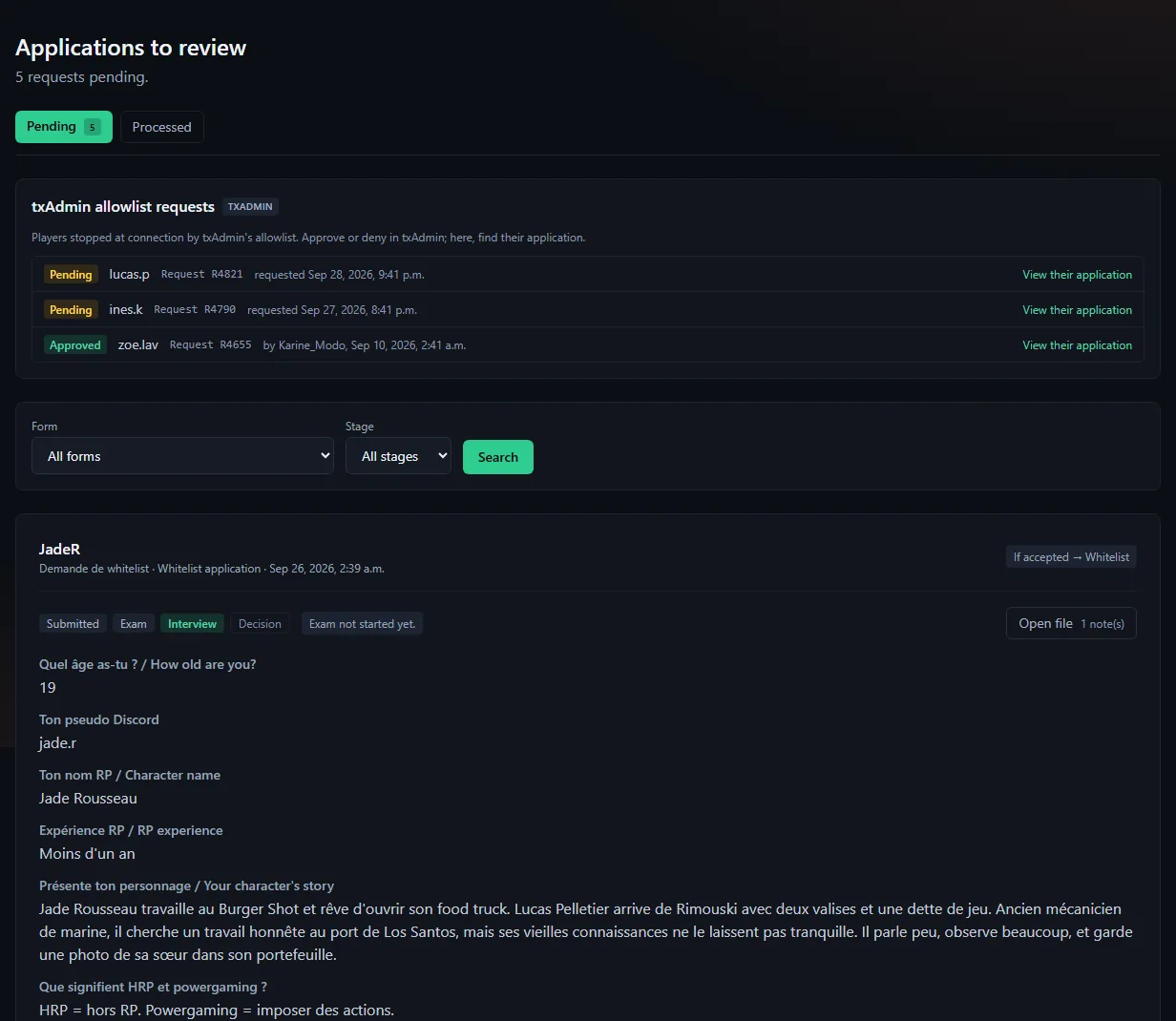
Moderation → Applications (Pending and Processed tabs, 25 per page, filters by form and stage; a page beyond the last one takes you back to a page that exists, instead of showing an empty list):
- Read the answers and, if any, the exam.
- Add internal notes if needed: never visible to the applicant.
- Move the stage forward (Submitted → Exam → Interview → Decision): it is for tracking only.
- Accept or Reject, with an optional message to the applicant.
On acceptance: the role is given, the Discord role follows, and the applicant gets a direct message. Revert the decision puts the request back to pending, without removing the role already given.
On a server that uses txAdmin, a box at the top of the queue also lists txAdmin whitelist requests, read-only: they are approved in txAdmin. See txAdmin in Agora.
Good to know #
- A form that grants a role with rights can only be accepted by an administrator.
- A suspended applicant cannot be accepted while the suspension lasts, nor can an anonymized account (ever).
- An accepted application is not resubmitted: a second request from the same applicant for the same form is refused.
- A form that grants a group linked to a power Discord role (Administrator, Ban, Manage roles…) can also only be accepted by an administrator: see Discord roles.
- A conditional application step no longer overwrites a verdict already given.
- Staff get no notification on each application: the "pending" counter on the Applications tile of Moderation is the reference, or add an
application.receivedwebhook.
Was this article helpful?
Related articles
- Apply: whitelist, police, EMS…My space → Applications: pick a form, answer the questions, take the exam if there is one, then follow your request until the decision.
- Groups and permissionsForum groups carry rights (moderate, review applications, manage an MDT department); MDT rights come from the in-game job.
- Connect Discord to Agora: sign-in, bot and rolesDiscord sign-in is mandatory; the bot, optional, assigns your groups' Discord roles and sends private messages.
- Outgoing webhooksNotify a Discord channel (or an integration) on every application, warrant, BOLO, leave request, thread, update or purchase.