
Apply: whitelist, police, EMS…
My space → Applications: pick a form, answer the questions, take the exam if there is one, then follow your request until the decision.
Updated on Oct 5, 2026, 9:25 a.m.
On this page
In short. Applications are submitted from My account (your name, top right) → Applications. You can follow their progress, and you get a Discord direct message when a decision is made.
Submit an application #
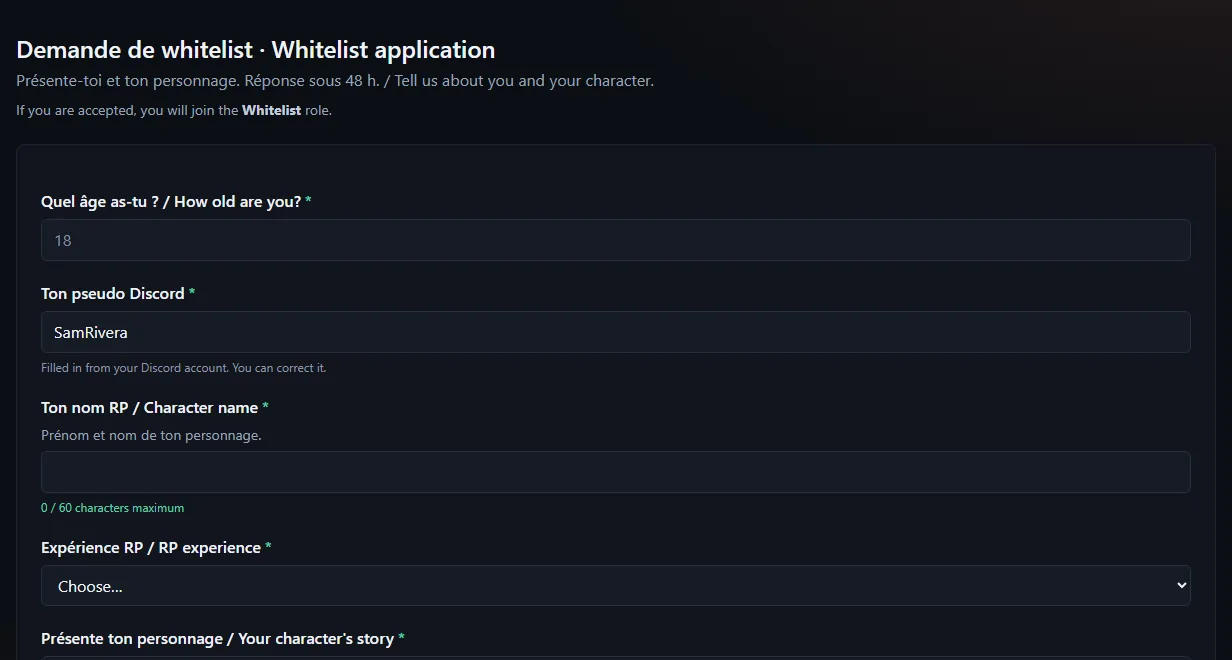
- Sign in to the site with Discord.
- Open My space → Applications. The Apply button of a "Job offers" block on the home page also leads to the job's form.
- Pick the form (for example the whitelist request) and read its introduction.
- Answer the questions. Some are pre-filled (Discord username…): you can correct them.
- Send your request.
No character on the server yet? A banner at the top of the forum takes you straight to your application.
If the form has an exam #
It starts right after sending. Before you start, you see the number of questions, the points and the duration.
- You get only one attempt.
- Time is counted by the server: a late paper scores zero.
- Copy-paste is blocked, and tab switches are counted. You are told beforehand.
- A question with several right answers accepts at most as many boxes as there are right answers; each right answer ticked earns a share of the points, and a wrong one takes nothing away.
- At the end, you read that your paper was handed in. You do not see the detail of the answers.
Left the exam before the end? Under My requests, the Exam to take button takes you back to your paper.
Follow your request #
Under My requests, your requests show their state: Pending, Interview, Accepted or Declined. The interview is a stage: staff contact you themselves.
When a decision is made, you get a notification on the site and a Discord direct message (if the server set up its bot and your direct messages are open).
If your request is rejected #
The form may require a delay before reapplying. It is shown before the form ("you can apply again from …"), so you do not fill in a request that would be refused. The staff's message often explains why.
If it is accepted #
You get the planned group (for example Whitelist), and the matching Discord role if the server linked it.
Was this article helpful?
Related articles
- Applications and examsBuild a form (whitelist, police…), add a timed exam graded automatically, then handle requests in Moderation → Applications.
- Link your game to your account (just once)A code from the site, typed into the tablet: after that, the tablet recognises you on its own and your characters show up on the site.
- Turn on two-factor authentication in Discord (staff)If your server requires it, turn on 2FA on your Discord account, then sign in to the site again: access to the MDT and the admin area comes back at once.