
View as a player: check what a player sees
An administrator picks an existing character and sees the portal as they do, read-only; for the MDT, the “View as” test mode does the same by job and rank.
Updated on Sep 30, 2026, 9:22 p.m.
On this page
In short. A player says they cannot see their money, vehicles or warrants? Instead of guessing, pick their character: the My character page displays as that player would see it. You stay signed in under your account, nothing can be edited, and a banner reminds you that you are in preview. Administrators only.
What you need #
- To be an administrator and not suspended, with staff 2FA if your site requires it (Staff 2FA). A preview started before a 2FA loss is no longer shown until it is validated again: it shows money, warrants and a record.
- The MDT must be covered by your license (the portal is part of it).
- The game database must be connected (Connect the game database): characters are searched there. Otherwise the page says so and offers nothing.
The portal may be closed to players: you can still use this, which is handy to test it before opening it.
Make a preview #
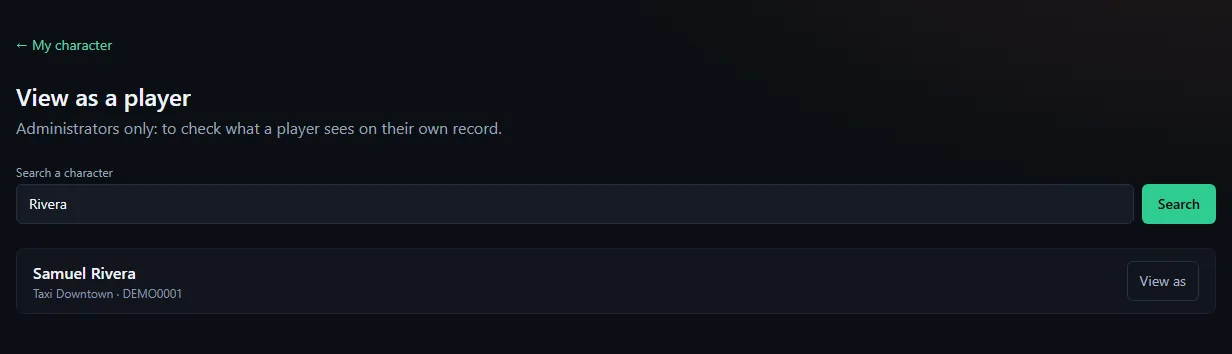
- Open My space → My character. At the top, the View as a player → link exists for administrators only.
- Type part of the character's name, then Search. Each result (20 at most) gives the name, the job and the character's ID.
- Click View as: you come back to My character, which now shows that character.
The yellow Admin preview: you're seeing the Portal as (character name) banner stays at the top. Exit the preview removes it. If you do nothing, the preview stops by itself after 8 hours, and it only applies to this browser.
What the preview shows #
A summary of what a player sees on their own record:
- identity: name, job and rank, character ID;
- money (bank and cash) if the Show bank and cash setting is on;
- their licences, their vehicles with their state and garage;
- their summarised record: total fines, arrests, “guilty” verdicts, and active warrants only if Show active warrants is on.
These are the same settings as for players (Administration → Configuration → Citizen portal): change them, then start a new preview to see the effect. The preview is deliberately simpler than the player's real page: it does not include classified ads, the journal or the other tabs. See The citizen portal.
The same reflex for the MDT #
For the MDT, the tool is called View as (“test mode”) and is set by job and rank rather than by character: it is described in Configure the MDT, Test access (admin) block of the MDT home page. Unlike the portal preview, actions you take in test mode are real and signed with your name.
If it does not work #
| Message or symptom | Cause and fix |
|---|---|
| No View as a player link | Your account is not an administrator |
| A 2FA page instead | Staff 2FA is required: enable it or validate it again |
| The page says the game server database is not configured | Connect the game database |
| No character matches. | Another spelling, or the player has no character yet |
| This character no longer exists. | It was deleted in game since the search: pick another one |
| I can no longer find my own portal | The preview is still active: click Exit the preview |
Was this article helpful?
Related articles
- The citizen portal: character, classifieds, the paperThe players' space: their character read-only, classifieds signed by the character, and a paper run by the server's press.
- Configure the MDT: services, jobs and permissionsPut each in-game job in a service, then tick job by job or rank by rank what it can do; off-game access is the most important permission.
- Require two-factor authentication for staffOne box in Administration → Configuration → Security: a staff member without 2FA on Discord can no longer enter the admin area or the MDT; the forum stays open.
- Connect the game server databaseThe MDT reads your FiveM server's real database: create a dedicated MySQL user, reachable from Agora, then fill in Server → Database.