
Configure the MDT: services, jobs and permissions
Put each in-game job in a service, then tick job by job or rank by rank what it can do; off-game access is the most important permission.
Updated on Oct 5, 2026, 9:25 a.m.
On this page
In short. MDT rights come from the character being played: their job and rank, read from the game database. You put jobs in services, then tick, job by job or rank by rank, what they can do. Nothing is open by default. When you promote an officer in game, their rights follow.
Before you start #
The game database must be connected: see Connect the game database.
1. Create a service and put jobs in it #
- MDT → Settings: each service is a card that groups its jobs. + New service: a name, a colour and a type (Police, Medical services, Justice, Dealership, Other trade).
- The type grants no rights: it picks the wording (Citizens, Patients…), the suggested permission templates and, for a dealership, the vehicle catalogue it manages.
- At the bottom of the card, + Add a job: type to filter the game's jobs, or type its exact name (e.g.
sasp). A job belongs to a single service. - The card's Manage button lets you rename the service, change its colour or type, tick Map: multi-job (see The live map) or delete it (only with no job, and no report or vehicle stored in it).
For a job to have its own reports, fleet and employees, create a service for it: MDT services. Jobs kept in the "Other" service share everything between them.
Not every job shows up? The catalogue may be "deduced from characters". Connect the panel or SFTP to read jobs.lua (Server → Database), or type the name by hand. The catalogue reloads by itself, every 5 minutes.
2. Set the permissions #
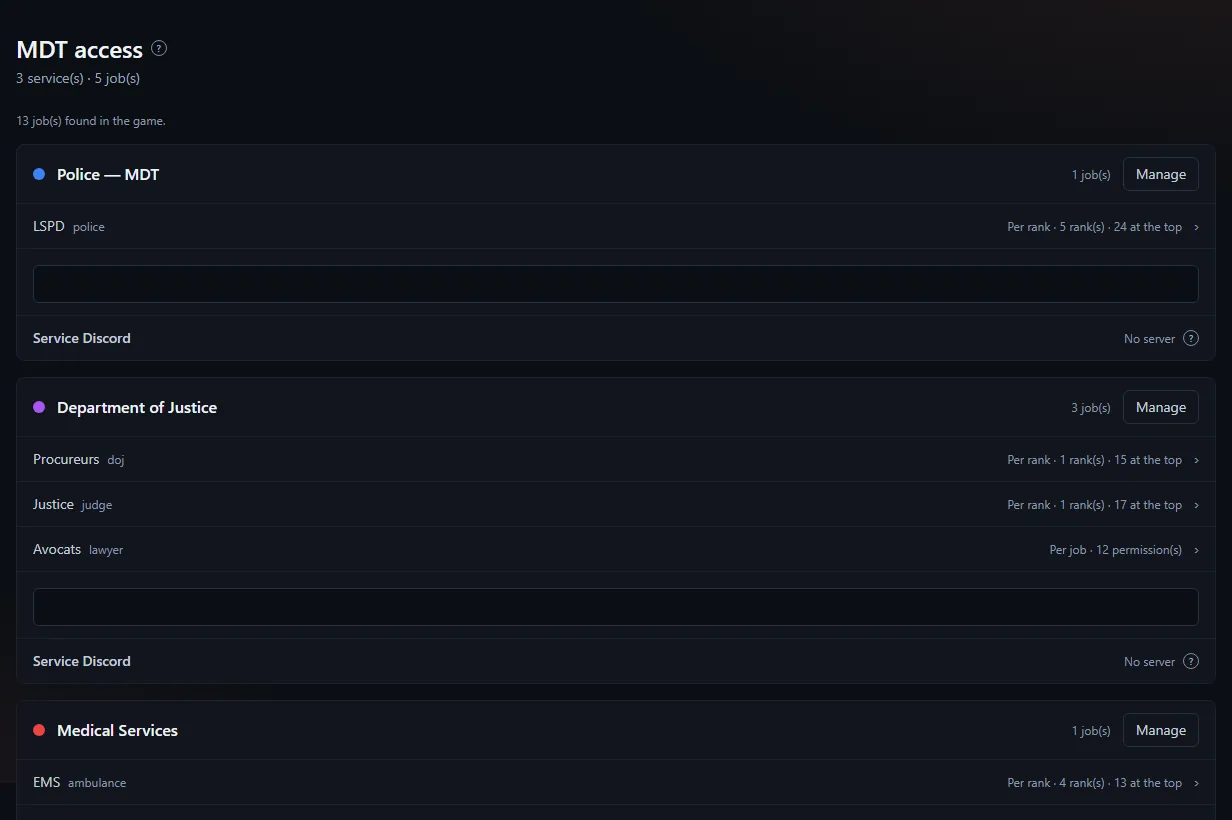
Click a job to open it. Two modes, your choice:
- Same permissions for the whole job: every rank has exactly the same ones.
- Permissions per rank: each rank has its own and also gets those of the ranks below it. The ladder runs from the lowest rank (top) to the highest: set the lowest first, the next ones inherit. Drag ranks to reorder them, then Save order. An inherited permission can be unticked for one specific rank ("removed here").
The other mode's settings are kept: you can switch back without losing anything.
Permissions are grouped in collapsible categories (General, Law enforcement, Health, Justice, Dispatch, Live map, Recruitment, Dealership), with a master box per category. Tick, then Save. An MDT section opens through its "View…" permission: what a service shows follows from the permissions of its jobs and ranks.
| Permission | What it opens |
|---|---|
| Open the MDT | Essential: without it, nothing else matters |
| Use the MDT outside the game | Open the MDT in a browser without being connected to the server |
| View citizen files | The Citizens section (Patients in a medical service) |
| Edit notes on citizen files | Notes and photo of a record |
| Delete a citizen file | Erase a record; also counts as fleet command |
| Look up a plate / a vehicle | The Plates section |
| Read reports, Write a report | Reports; writing also gives the right to act on dispatch and to use department vehicles |
| View the service fleet | The Fleet section |
| View employees, Manage the service's employees | Employees & HR; managing = members, ranks, leave and shifts of this service |
| Take booking photos in game | MDT button or the mugshot command |
| View warrants, Issue / edit a warrant, Serve a warrant | Warrants; issuing = also BOLOs, fleet command and filing at court; serving = mark a warrant executed, close a BOLO |
| View BOLOs | The BOLOs section |
| View arrests, Record an arrest, Supervise arrests (correct the charges) | Arrests; supervising = correct the charges, with a reason |
| View the penal code, Manage the penal code (sections, charges) | Penal code |
| View medical records, Create a medical record | Medical records |
| Court: file and view cases, Court: hear, rule and close cases | Court |
| Use dispatch | The Dispatch section and receiving 911 calls |
| See on-duty colleagues on the map | The colleagues map |
| Manage the job's forms, Process the job's applications | Recruitment: this job's forms and applications |
| Dealership permissions (view the catalogue, add, edit, change prices, photos, remove) | The catalogue of a Dealership-type service |
A job you add has no permission: tick at least Open the MDT.
Use the MDT outside the game is the most important permission. Without it, the MDT only opens in game (tablet, or browser while playing). This is what stops someone from checking a record from bed. Beware: the master box of the "General" category ticks it too.
Templates and ladders #
Under the services, the collapsed Permission templates and ladders section offers ready-made templates (Police · Recruit to Chief, EMS, DOJ, Dealership, Read-only…) and your own. In a job or a rank, Apply a template copies its boxes: you then adjust them by hand. A ladder spreads templates, from lowest to highest, over a job's ranks.
Discord per service #
At the bottom of the card, Service Discord links the service to a Discord server where the bot is invited: one role per rank (given and removed automatically), channels for the service's notifications, and the Discord membership required option to open the MDT.
3. When the game server stops answering #
With no signal for 90 seconds, Agora can no longer check who is playing what. Under the services, the Server unreachable block offers two choices:
- Keep the browser MDT open (default), with a warning;
- Suspend the browser MDT until the server is back. Administrators keep access.
4. Check with "View as" #
On the MDT home page (MDT), Test access (admin) block: View as. Pick a job and a rank, you see exactly what that player sees, refusals included. The Test mode banner stays at the top, with Leave test mode. ⚠ Actions taken in this mode are real and signed with your name.
Several jobs, several characters #
- A character holding several jobs (
player_groups) can reach their services, but permissions are read service by service: never pooled across jobs. Buttons follow the service you are acting in: a button your service would refuse is no longer shown. - In game, the site follows the loaded character. Off-game, a single character is picked automatically; with several, the member chooses (Switch character link).
Without a game database #
Agora falls back on the forum groups police, doj and ems, with every permission of their department (except HR management). It is a start-up mode, not a way to run your server.
Was this article helpful?
Related articles
- Connect the game server databaseThe MDT reads your FiveM server's real database: create a dedicated MySQL user, reachable from Agora, then fill in Server → Database.
- Create an MDT service for a jobA service of its own (mechanic, taxi…) gives a job its own reports, fleet and roster, invisible to other jobs.
- Groups and permissionsForum groups carry rights (moderate, review applications, manage an MDT department); MDT rights come from the in-game job.
- The live map: permissions, on duty, multi-job, OneSyncLive player positions for staff, and for on-duty colleagues of the same job if you open it; almost no cost for the game server.
- Employees and HR: ranks, shifts, leave, time zoneWho serves, who is away, how many hours and who is slipping: hours come from in-game presence, managers handle ranks and leave with a reason.