
Finding your way: Moderation, Administration and Server
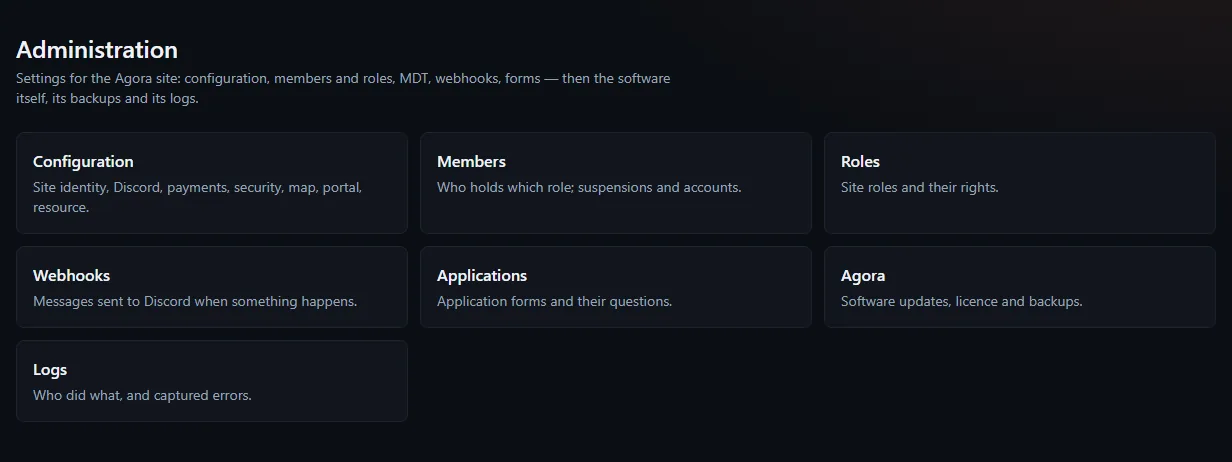
Staff have three areas: Moderation for day-to-day cases, Administration for configuration, Server for the game server.
Updated on Oct 4, 2026, 5:45 p.m.
On this page
In short. The top bar of your Hub (your Agora site) is for everyone, and staff find three extra areas in it: Moderation, Server and Administration. Click an entry in the bar to open its tile page, one tile per sub-page.
Before you start #
- You are signed in with Discord. An account that is not in the staff does not see the three areas.
- Each entry of the bar only shows to those allowed to use it: if you do not see one, it is a matter of rights (see Groups and permissions).
- The technical words are explained in the glossary.
The top bar and My account #
Look at the top bar. It shows everyone Home · Donations · MDT (if you have access to the MDT) and Map (if you may see it). Staff also find Moderation, Server and Administration there, depending on their rights.
Click your username, at the top right: it opens My account, with your characters, your account security, your account and your application.
<!-- CAPTURE C-026 -->
On a phone, the menu drawer lists everything.
<!-- CAPTURE C-027 -->
The three staff areas #
<!-- REFAIRE C-023 : la capture ci-dessous date du 28/09, à reprendre sous le même nom de fichier -->
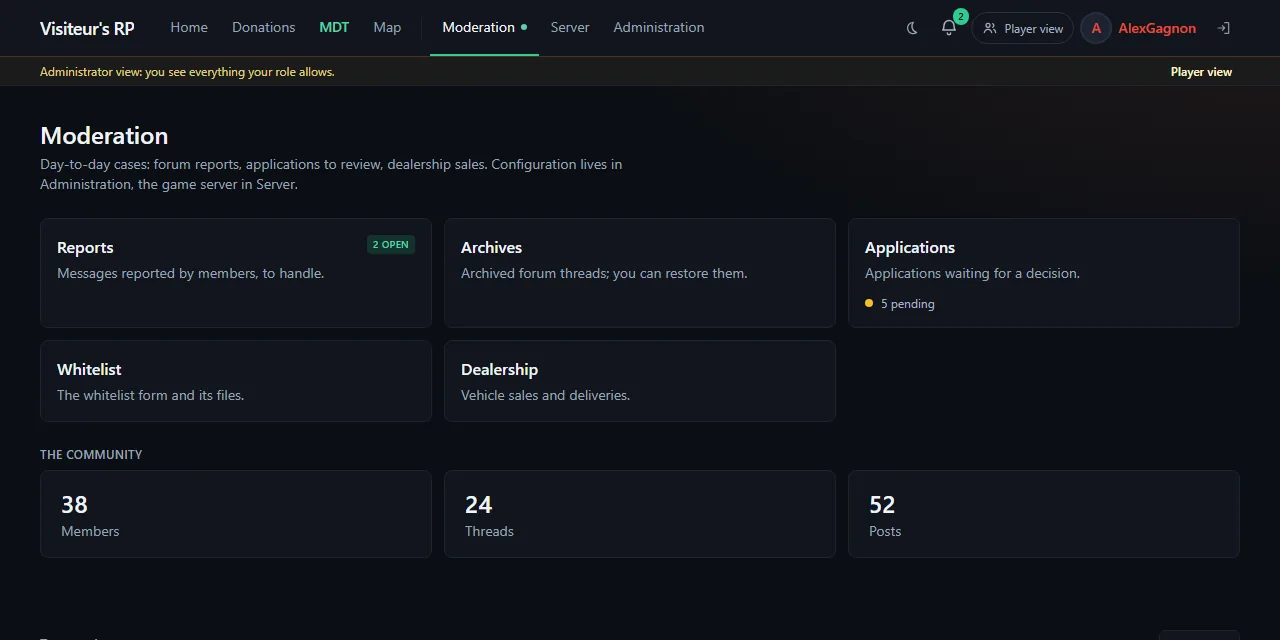
| Area | Who | What you do there | Tabs |
|---|---|---|---|
| Moderation | Administrators, moderators and roles with a moderation right | Day-to-day cases, nothing to configure | Reports, Archives, Applications, Whitelist, Dealership (administrators) |
| Administration | Administrators | Site configuration | Configuration, Members, Roles, Webhooks, Applications, Agora (updates, license, backups), Logs |
| Server | Administrators | The machine and the game server | Console, .cfg editor, Panel, Database, Players, txAdmin |
A tab only shows to those allowed to use it. A role that only received the Review applications right sees only the Applications and Whitelist tabs in Moderation.
MDT configuration (departments, jobs, ranks, permissions) is no longer part of Administration: it lives inside the MDT, MDT → Settings.
<!-- REFAIRE C-024 : la capture ci-dessous date du 28/09, à reprendre sous le même nom de fichier -->
The Server page shows one tile per sub-page: the console, the server.cfg file, the panel, the database, the players and txAdmin.
<!-- CAPTURE C-025 -->
Where is… #
| I am looking for… | It is here |
|---|---|
| The forum structure (categories, sections) | On the home page itself: Edit button (edit mode, draft, then Apply) |
| Thread moderation | Forum moderation, link on the section list |
| Updates and the license | Administration → Agora |
| In-game 911, the tablet key | Administration → Configuration → Agora resource |
| The game database connection | Server → Database |
| The hosting panel, SFTP, deploying the resource | Server → Panel |
| MDT permissions per job and rank | MDT → Settings |
| Live map permissions | MDT → Settings, block Live map — permissions |
| Who has which role | Administration → Members |
The Team page #
The public Team page shows the team to everyone. Its link is in the footer of every page.
<!-- CAPTURE C-028 -->
From the in-game tablet #
The tablet opens the site inside FiveM. An administrator sees the whole MDT and the forum there, but Administration, Server and Moderation stay closed from the game: those actions are done in a browser, signed in with Discord.
You know it worked when… #
- You find on your own, in the "Where is…" table, the page where to set the license, the game database and the Discord bot.
- If you are an administrator, the top bar shows the three entries Moderation, Server and Administration.
If it does not work #
| What you see | What to do |
|---|---|
| An entry is missing from the top bar | Your account is not allowed to go there: an administrator adjusts your roles in Administration → Members |
| You are an administrator but Administration cannot be found in the tablet | That is intended: open Agora in a browser |
| You do not know which tile to open | Look for your action in the "Where is…" table |
Go further #
- Set who sees what: Groups and permissions.
- Set your site's name, logo and appearance: Site settings and the home page.
- Handle day-to-day cases: Moderate the forum.
- Use the console and the game database: Console, panel and database explorer.
Was this article helpful?
Related articles
- Your first day with Agora: the steps in orderFrom an empty machine to a tablet working in game: the steps in order, each with its article and the sign that it is done.
- Groups and permissionsForum groups carry rights (moderate, review applications, manage an MDT department); MDT rights come from the in-game job.
- Site settings and the home pageAdministration → Configuration applies everything live: name, logo, language, public address, theme, Discord, payments, security, map, portal, dealership and tablet.
- Moderate the forum: hide, archive, mandatory reasonNothing is ever deleted: a post is hidden, a thread is archived, and every action requires a reason sent to the author.
- Console, panel and database explorer (Pro tier)Connect your Pterodactyl or Pelican panel to see the server state, start it, send commands, deploy the resource and explore the game database.